
Needing to load some libraries
Went to: https://craftingtable.com/pages/downloads
Needed lcd_api.py and i2c_lcd.py
Within Thonny:
-File, open and navigate to each file
-Open on computer
-Save As and save to Raspberry Pi Pico and name it the same. It then shows next to the first library I saved.
Wired it up and it worked. Now I have a 2 line LCD output device working
Task: Attach the LCD1602 display to the Raspberry Pi Pico using the I2C interface (SDA to GP0, SCL to GP1).
Code:
Q: What are lcd_api.py and i2c_lcd.py, which I needed to download from CraftingTable? Libraries?
Q: What is an LCD1602 display?
A: https://docs.sunfounder.com/projects/ultimate-sensor-kit/en/latest/components_basic/21-component_i2c_lcd1602.html (where I’ve used some of their documentation for my understanding).
A: It’s an LCD1602 IIC/I2C Blue Backlight Display, with 2 lines. A 16×2 LCD means it can display 16 characters per line and there are 2 such lines. In this LCD each character is displayed in 5×7 pixel matrix. The I2C module has a built-in PCF8574 I2C chip that converts I2C serial data to parallel data for the LCD display.
A: The PCF8574 device provides general-purpose remote I/O expansion for most microcontroller families by way of the I2C interface [serial clock (SCL), serial data (SDA)].
A: More detail:
An I2C LCD1602 consists of a normal LCD1602 and an I2C module that is attached to the back of the LCD. The I2C module is a chip that can expand the I/O ports of the Raspberry Pi using the I2C protocol. The I2C protocol is a serial communication protocol that uses two wires: SDA (serial data) and SCL (serial clock). The I2C protocol allows multiple devices to communicate with each other using only two wires and unique addresses.
The I2C module converts the signals from the Raspberry Pi into commands for the LCD. The LCD has 16×2 cells that can display characters or symbols. Each cell consists of 5×8 dots that can be turned on or off by applying voltage. The LCD can display different characters or symbols by turning on or off different combinations of dots.
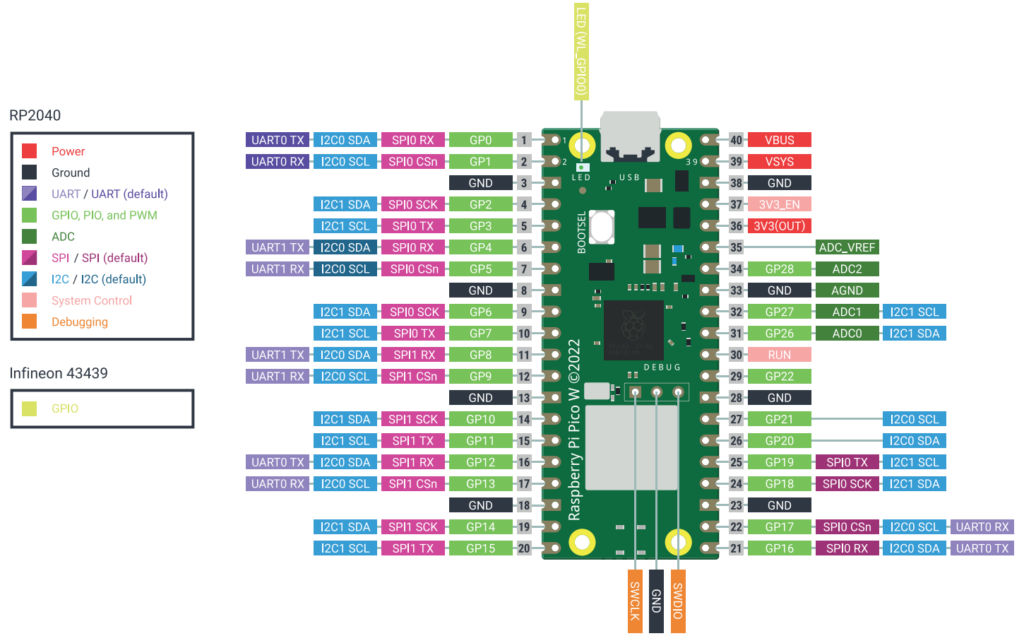
Q: Why is the GP0 (SDA) port part of PIN1 on RPi?
Q: Why is the GP1 (SCL) port part of PIN2 on RPi?
Q: Why does the Python code have SDA=Pin0 and SCL Pin1, when the schematic is PIN1 and PIN2?
Q: What is VBUS on Raspberry Pi stand for. I know it’s for power. On the Display board it is labeled VCC
A: The VBUS port on the Raspberry Pi Pico W is the 5V power input from the USB port and is connected to the micro-USB connector. It can be used to power the Pico when it’s plugged in, and you can also use it to source 5V power to an external circuit. Important: Do not connect a second power supply to VBUS if the Pico is already powered via USB, as this can damage either power source. When the Pico W is plugged into a USB power source, the VBUS pin receives that 5V, which is then used to power the board. The amount of current available from VBUS depends on the power source. Powering external circuits: VBUS can be used as a 5V output to power external components or devices, but only when the Pico is connected to and powered by a USB source. Alternative to USB: You can also connect an external 5V power supply directly to the VBUS pin (pin 40) instead of the USB port. However, you must not simultaneously connect another power supply to the USB port to avoid back-powering either source.
Pinouts and wiring:
Pin1: SDA (on back of display board) goes to PIN1 of Raspberry Pi. Schematic is GPO and ‘I2CO SDA’
Pin2: SCL (on back of display board) goes to PIN2 of Raspberry Pi. Schematic is GP1 and ‘I2CO SCL’
Pin23: GND (on back of display board) goes to PIN23 of Raspberry Pi. Schematic is GND.
Pin40: VCC (on back of display board) goes to PIN40 of Raspberry Pi. Schematic is VBUS. This must be Power.
Examining the code, for understanding: